
Getting started cleaning your email lists in Klaviyo in real-time is easy with mailfloss. Once a Klaviyo webhook is set up, you can let mailfloss automatically clean your email lists with Klaviyo as email addresses enter your system, in real-time. Here’s how to do that.
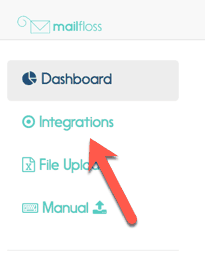
Step 1. Visit the integrations page
Visit the integrations page by clicking on “Integrations” in the left sidebar.
Step 2. Ensure you are on the Klaviyo Integration tab
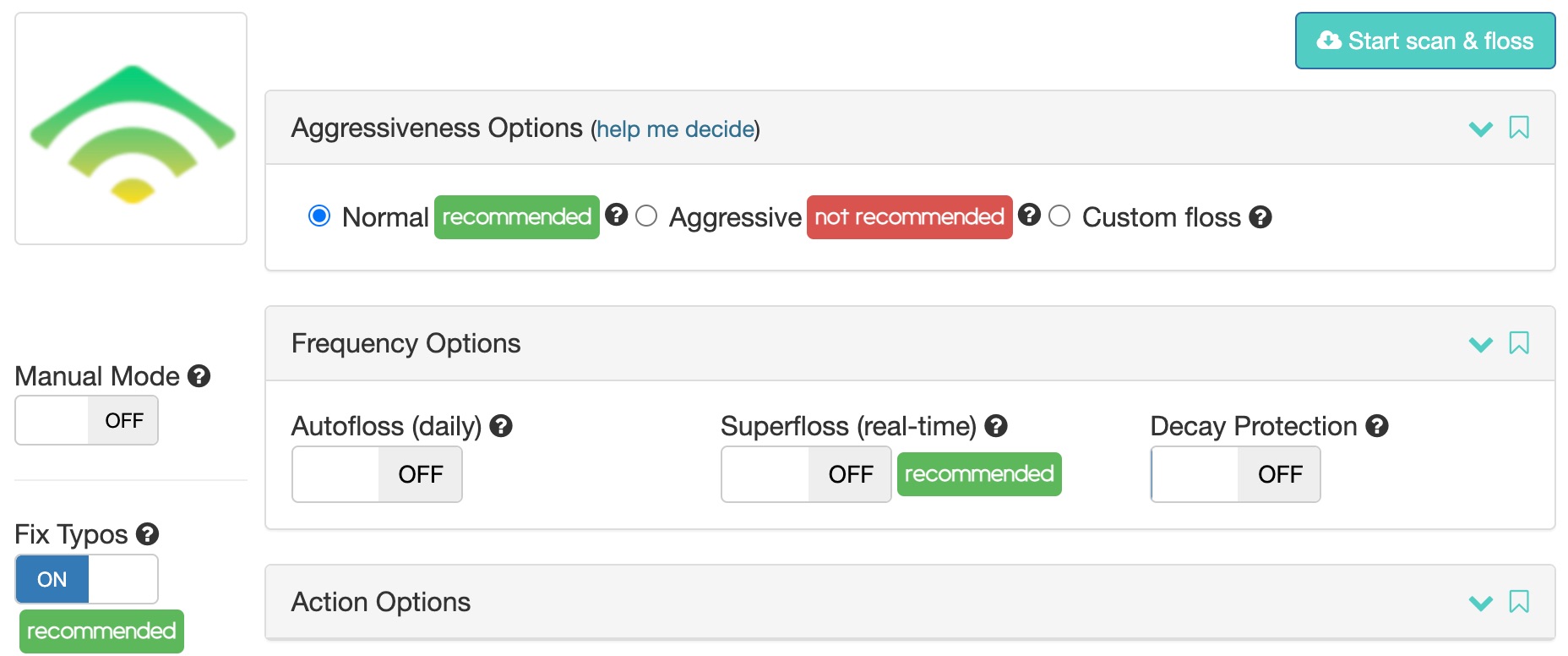
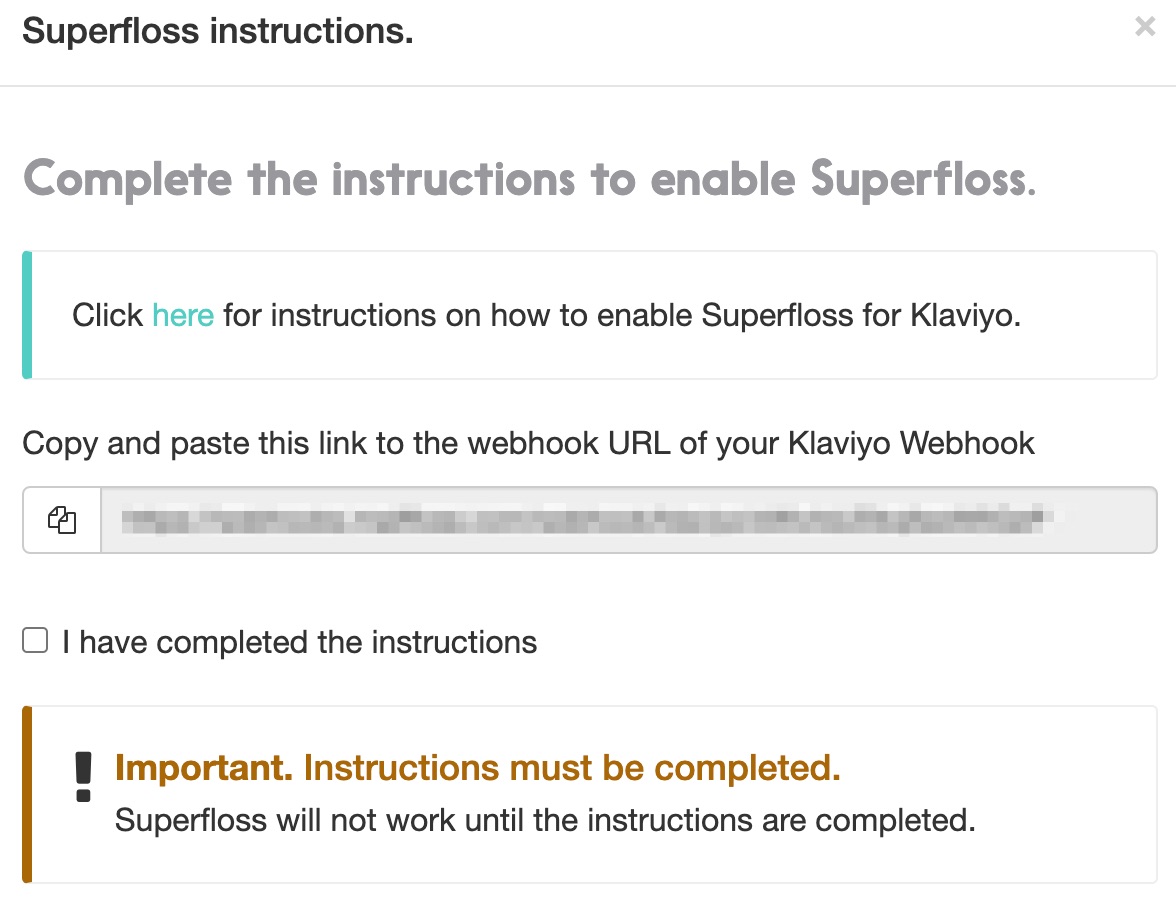
Step 3. Click the Superfloss switch, a popup will appear with a webhook URL, copy it.
You will need to login to Klaviyo for the next step.
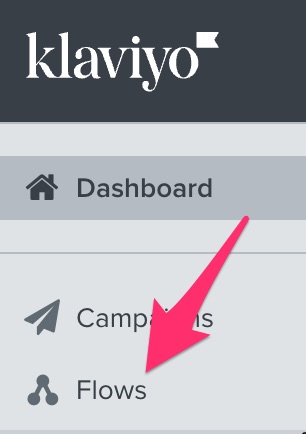
Step 4. In Klaviyo, select Flows in the navigation sidebar
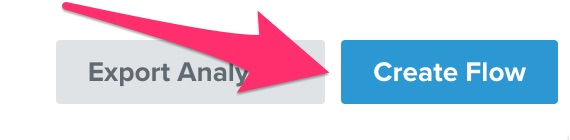
Step 5. Click Create Flow
Step 6. Click Create From Scratch
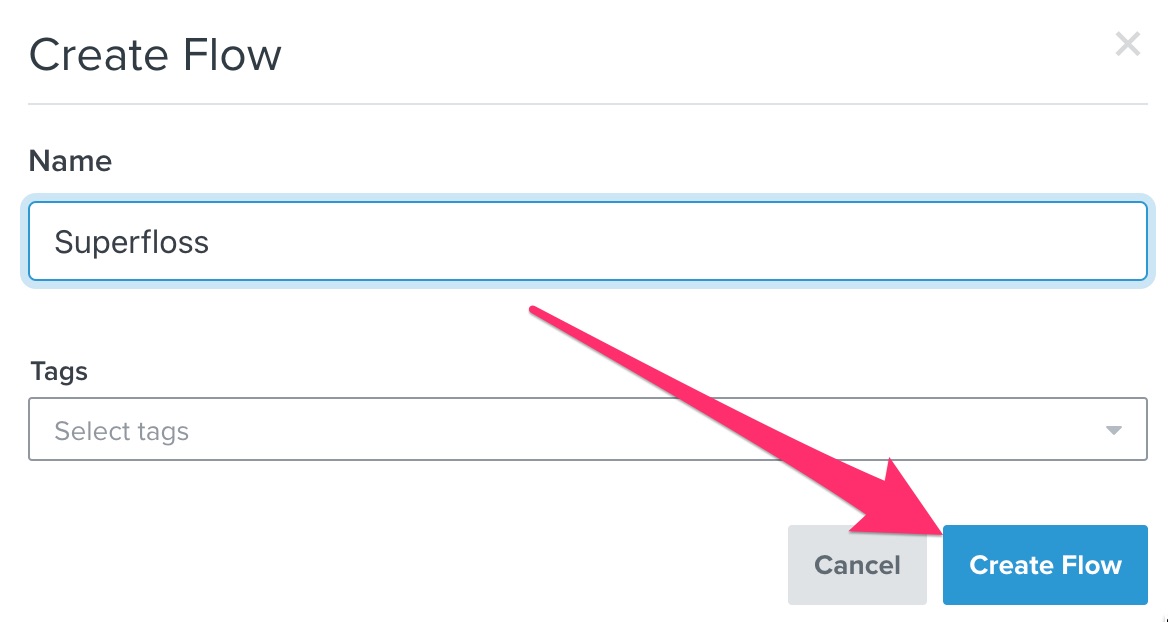
Step 7. Give it a name "Superfloss" and click Create Flow
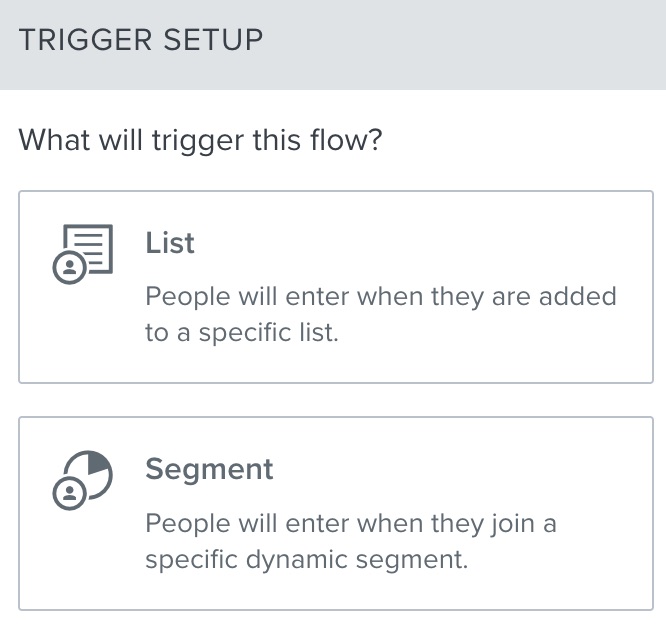
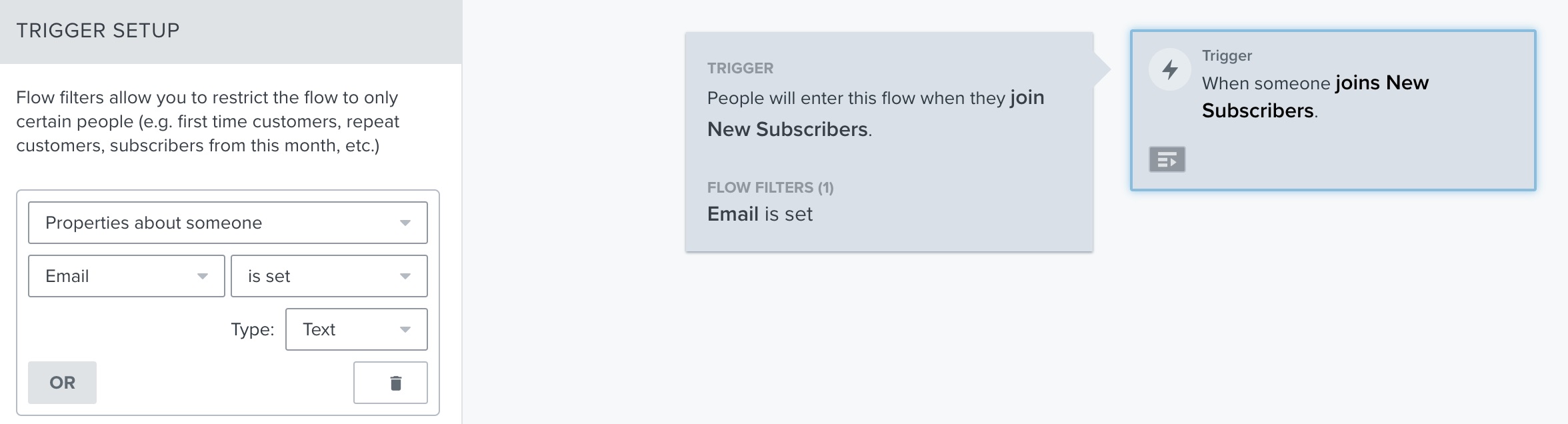
Step 8. In Trigger Setup, select List or Segment with the email addresses you want to send to mailfloss
Be sure to make a note if this is a list or segment as you will need this information later.
Step 9. Select the list or segment you want to use and use the filter Email is set. It should look like the following screenshot.
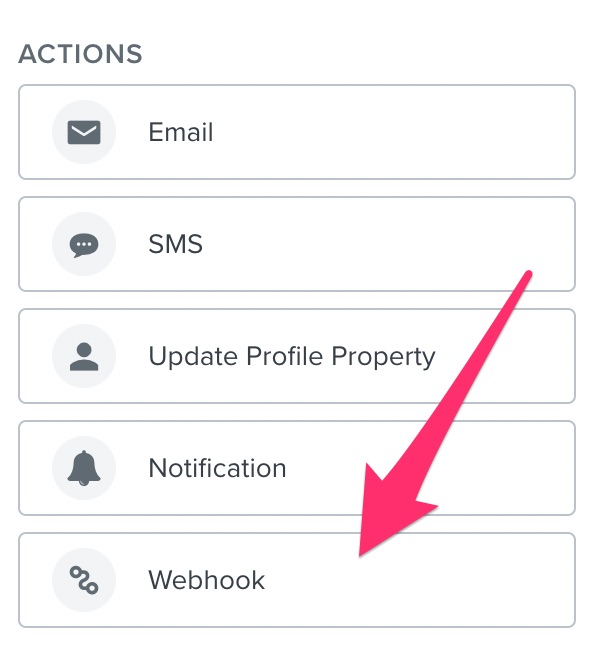
Step 10. Under Actions, drag the Webhook action onto the flow builder
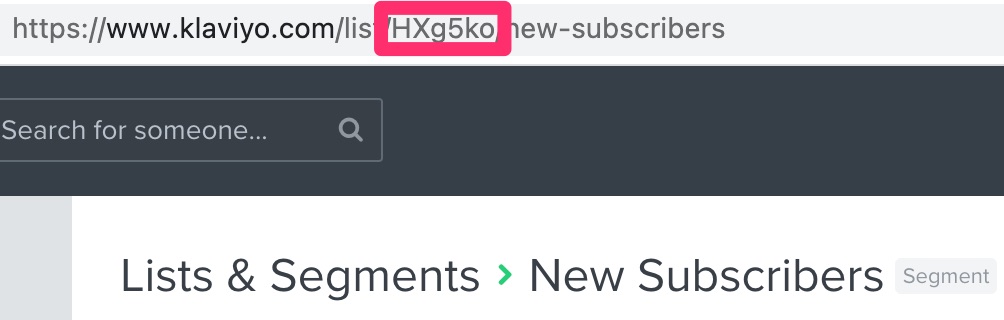
Step 11. Click the list or segment (New Subscribers in our example) trigger in the flow builder and then click the link to open it in a new window

Step 12. In the new window that opened from step 11, copy the string in the url between the slashes (/) after /list/. In our example, copy "HXg5ko".
Step 13. Click Configure in the flow builder Webhook box, paste the webhook URL from step 3 into the destination URL, and include in the JSON body the segment or list id. If it is list, use list_id, and if a segment use segment_id. This is very important. Click Save to save the configuration.
Be sure to use list_id if it is a list or segment_id if a segment or it will not work.
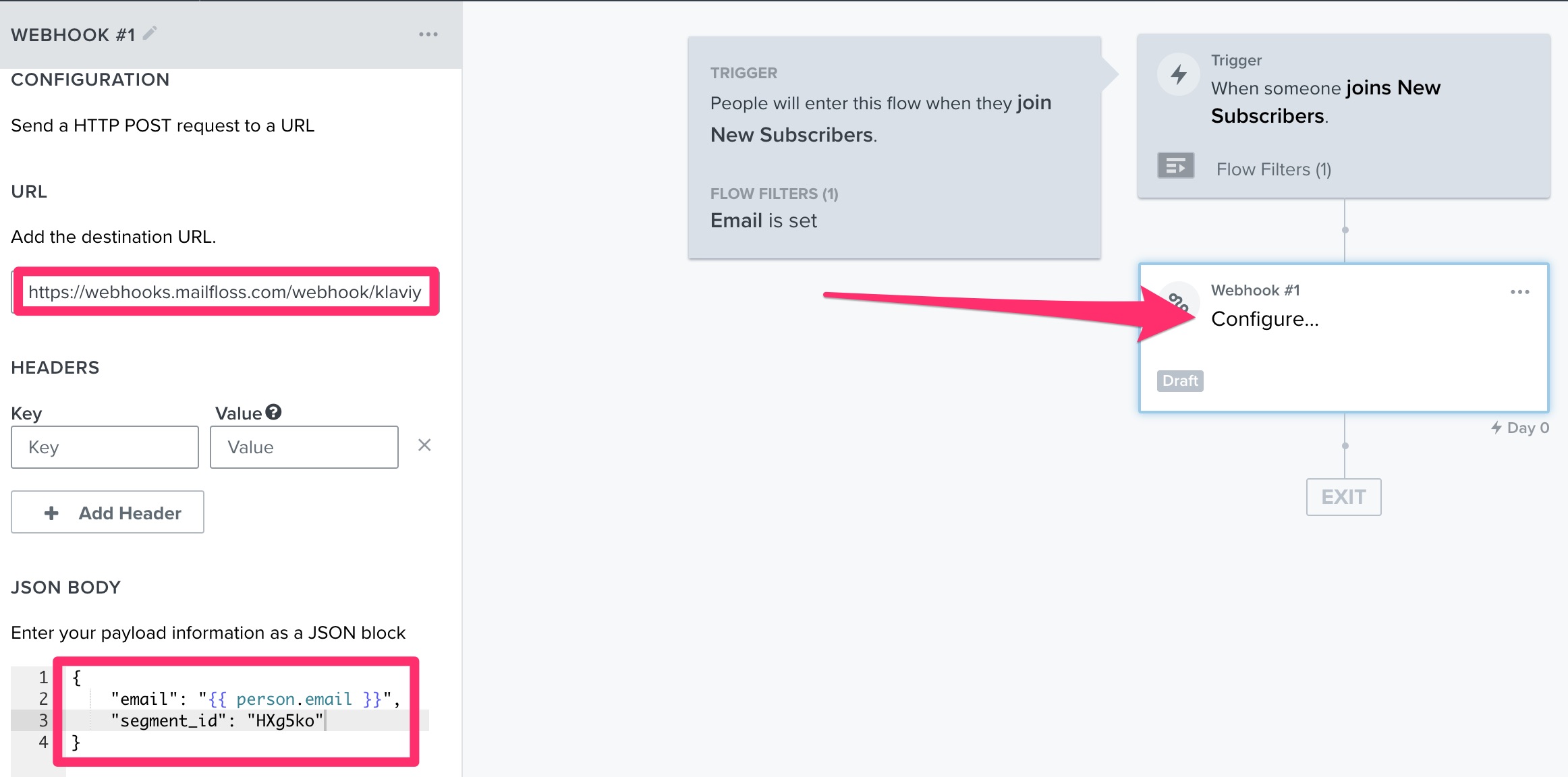
The JSON body will look like the following (we use segment_id in our example since we are using the New Subscribers segment):
POST https://webhooks.mailfloss.com/webhook/klaviyo/<Webhook URL from Step 3>
{
    "email": "{{ person.email }}",
    "segment_id": "HXg5ko"
}
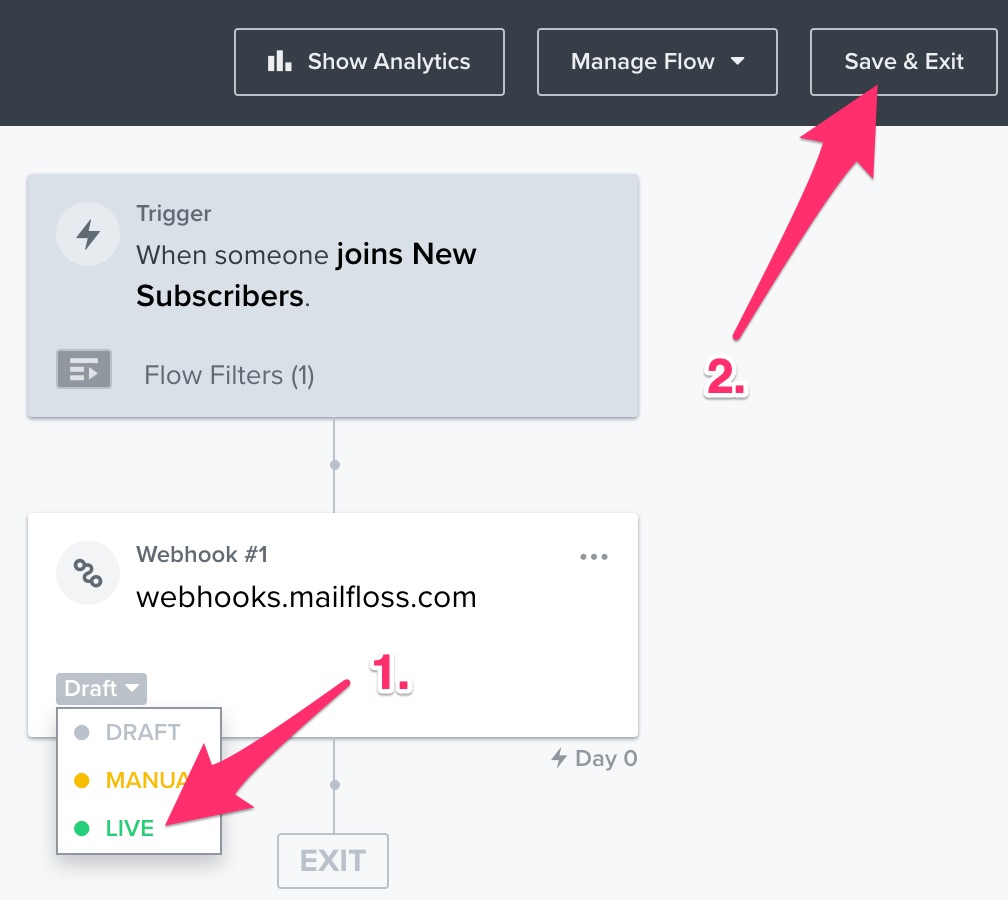
Step 14. Click the DRAFT dropdown in the webhook box in the flow builder and select LIVE, and then click Save & Exit
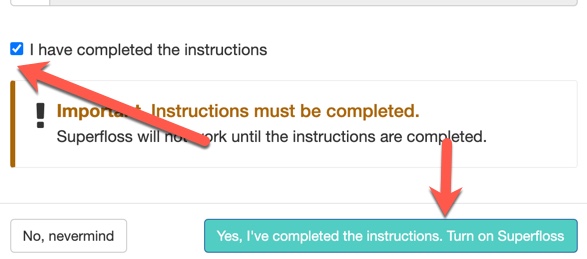
Step 15. Back in mailfloss, click the checkbox that you have completed the instructions, then click the button to turn on Superfloss.
Please note Superfloss is for real-time operations only. For bulk import/cleaning operations, see this article. Please do not send large batches of email addresses to the provided webhook address.