Getting started cleaning your email lists with Mautic is easy with mailfloss. Once Mautic is connected, you can let mailfloss automatically clean your email lists with Mautic going forward. Here’s how to do that.
Step 1. Visit the integrations page
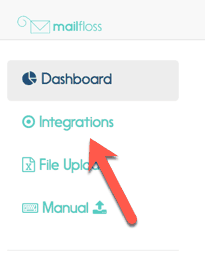
Visit the integrations page by clicking on “Integrations” in the left sidebar.
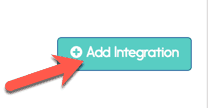
Step 2. Click the Add Integration button
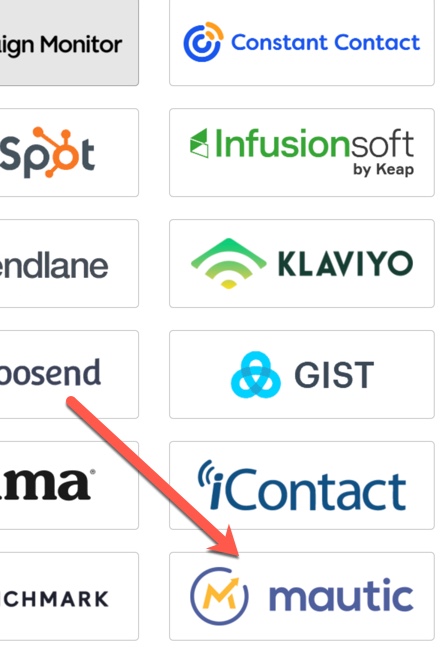
Step 3. Click the Mautic image
You will need to login to Mautic for the next step.
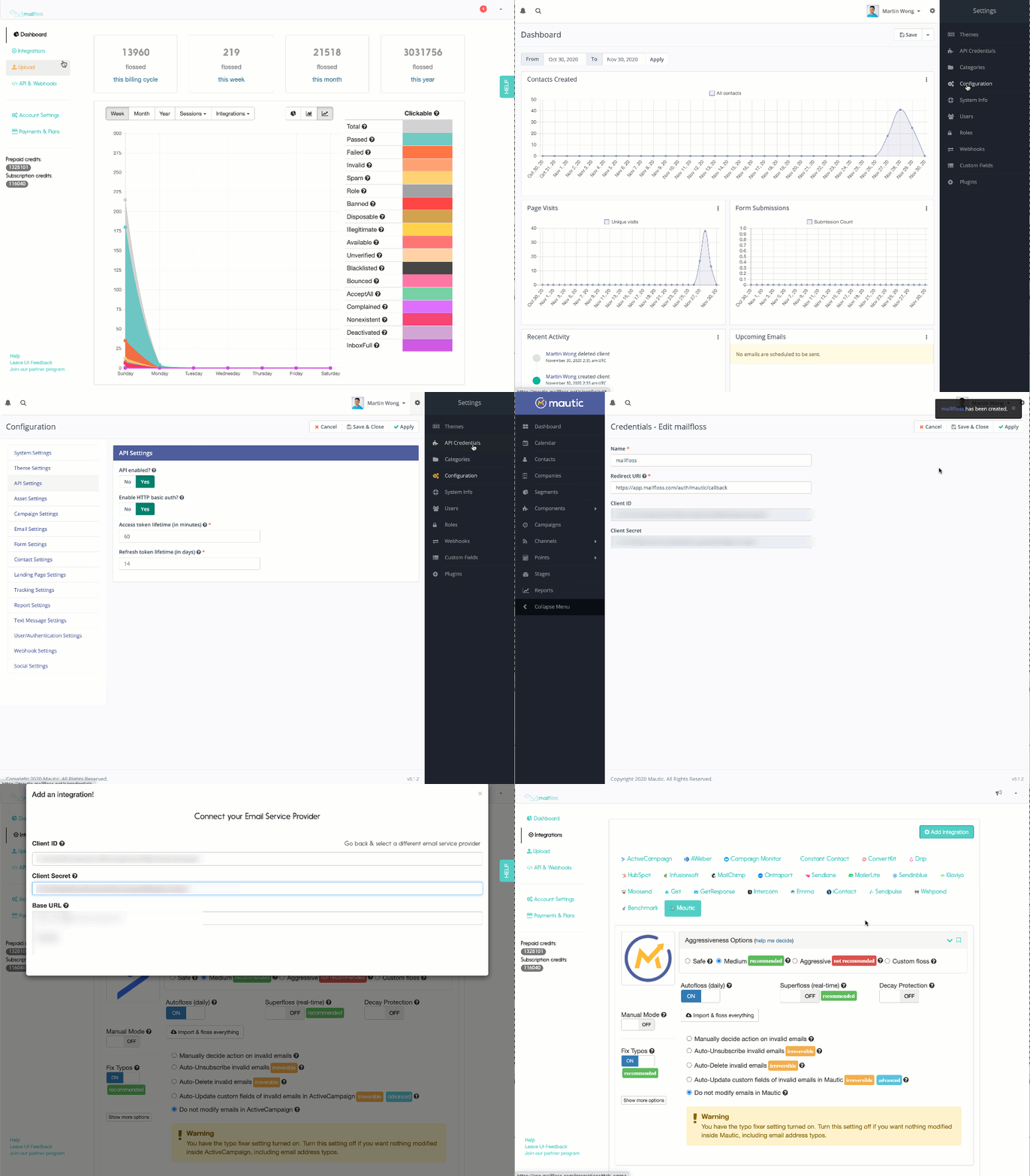
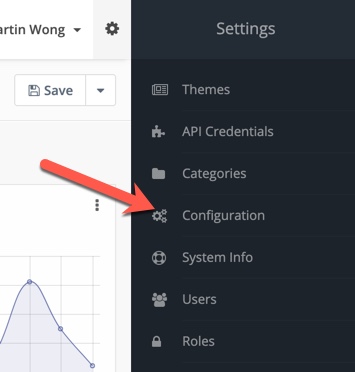
Step 4. In Mautic, click the top right gear and select Configuration from the menu
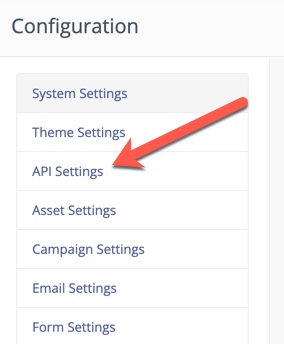
Step 5. Click API Settings
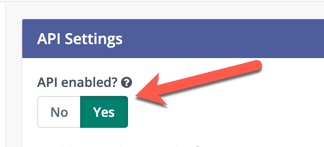
Step 6. Ensure API enabled is set to Yes. If it isn't, enable it and save.
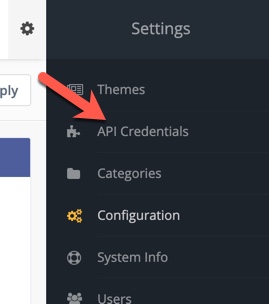
Step 7. Click the top right gear and select API Credentials from the menu
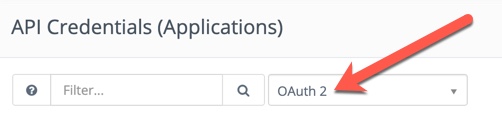
Step 8. Select OAuth 2 from the dropdown
Step 9. Click the +New button

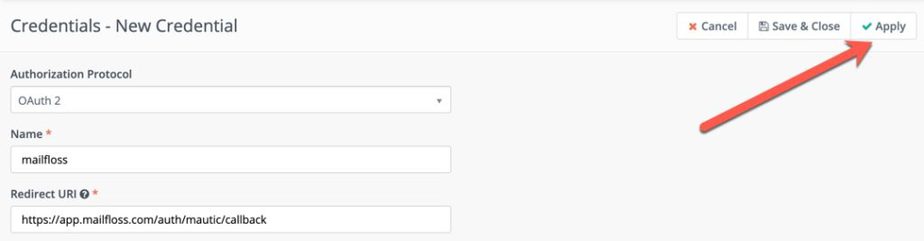
Step 10. Give the credentials a name, set the Redirect URI to https://app.mailfloss.com/auth... and click Apply
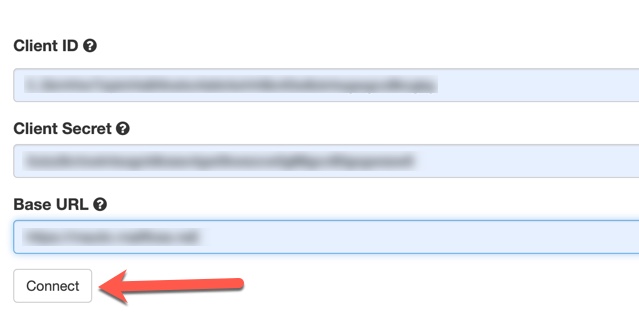
Step 11. Back in mailfloss, paste the Public Key into the Client ID space, the Secret Key into the Client Secret, and the Mautic base URL. Once finished, click the Connect button.
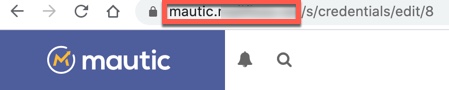
The base URL is the base of the URL found in the browser URL bar (https://mautic.your-mautic.com, for example).
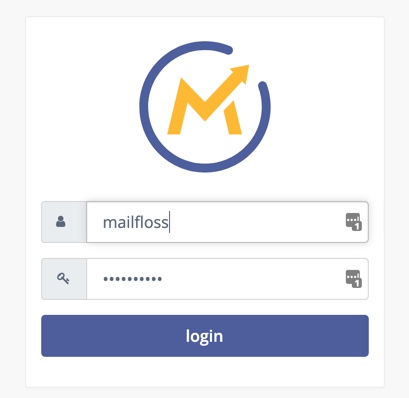
Step 12. Login to Mautic, if required
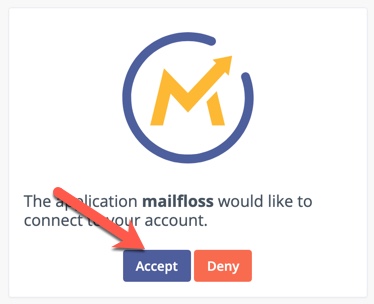
Step 13. click Accept to finish the connection